

Windows Asking for a BitLocker Recovery Key? Here’s How to Find It (2026 Guide)
Last Updated: 14 September 2026
Seeing a blue screen asking for a BitLocker Recovery Key can be frustrating, especially when you need immediate access to your computer. Whether you’re using Windows 11 or Windows 10, the BitLocker recovery screen can appear after a BIOS or UEFI update, Windows update, hardware change, Secure Boot change, or another security-related change.
If your computer is showing the BitLocker Recovery screen right now, you usually do not need to reinstall Windows. The first thing to do is find the correct 48-digit BitLocker Recovery Key and compare its Recovery Key ID with the ID shown on your locked computer.
🔑 Quick Answer: Where Is My BitLocker Recovery Key?
If Windows is asking for a BitLocker Recovery Key, the fastest place to check for a personal Windows PC is your Microsoft account.
- Use another phone, tablet, or computer if the locked PC cannot be used.
- Open Microsoft’s BitLocker recovery-key page.
- Sign in with the Microsoft account that was used on the locked computer.
- Find the recovery key whose Key ID matches the Recovery Key ID shown on your BitLocker screen.
- Enter the matching 48-digit BitLocker Recovery Key on the locked computer.
Personal Microsoft account:
Find your BitLocker Recovery Key
Important: If the key is not in the first Microsoft account you check, try other Microsoft accounts that may have been used when the computer was originally configured.
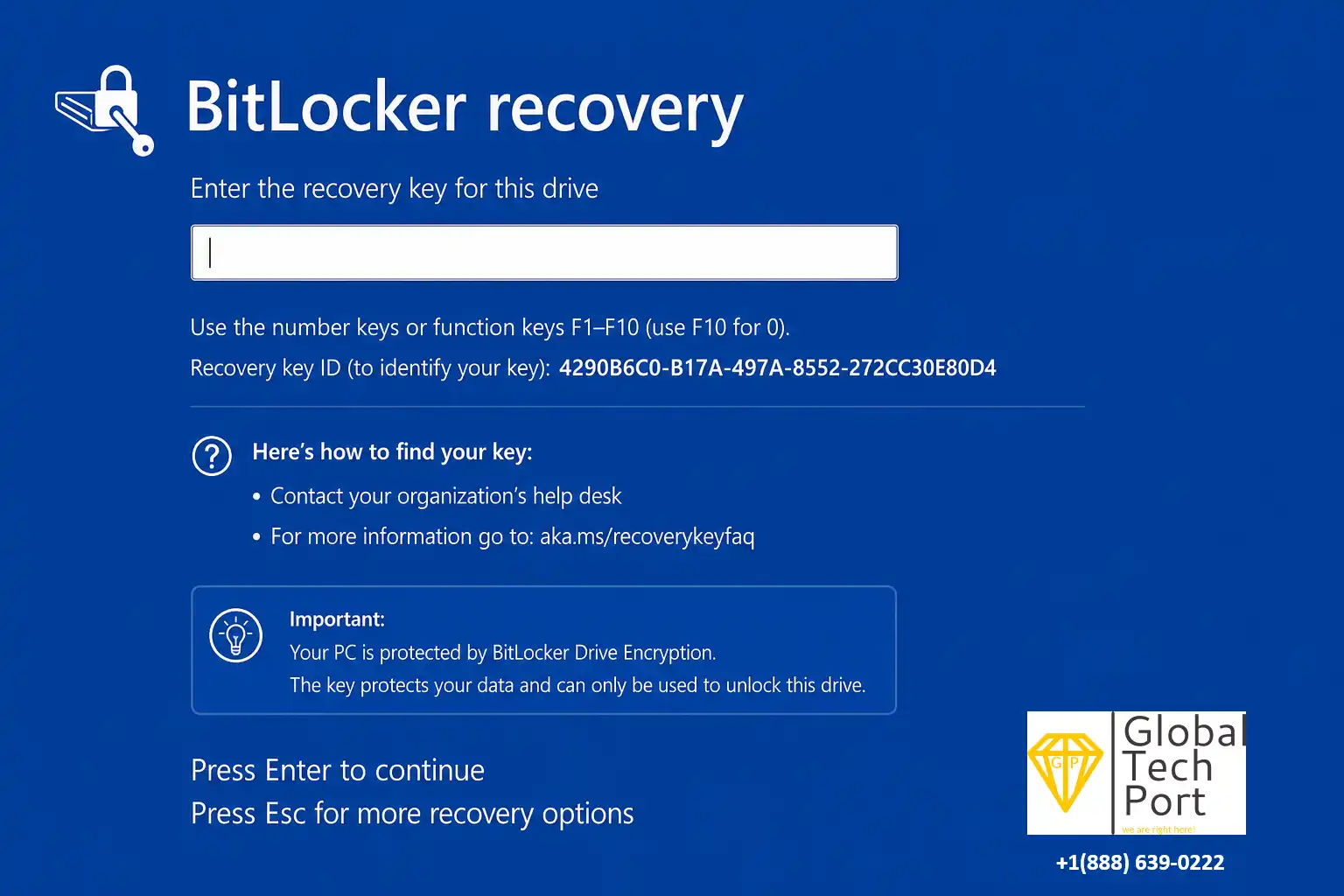
The good news is that seeing the BitLocker Recovery screen does not necessarily mean your files are lost. In many cases, the 48-digit BitLocker Recovery Key has already been saved to your Microsoft account, your organization’s account, a USB drive, a printed copy, or another location chosen when BitLocker was configured.
This guide explains how to find your BitLocker Recovery Key, how to use the Recovery Key ID to identify the correct key, why Windows is requesting it, what to do if you cannot find the key, and what to avoid before making changes that could put your data at risk.
Contents
- How to Find Your BitLocker Recovery Key
- What Is the BitLocker Recovery Key ID?
- What Is a BitLocker Recovery Key?
- What If You Can’t Find the BitLocker Recovery Key?
- Can You Bypass the BitLocker Recovery Screen?
- Common Mistakes to Avoid
- Why Did BitLocker Suddenly Activate?
- Why Does BitLocker Keep Asking for the Recovery Key?
- How to Prevent BitLocker Recovery Prompts
- What Is BitLocker?
- Frequently Asked Questions
- Final Thoughts
How to Find Your BitLocker Recovery Key
If Windows is asking for a BitLocker Recovery Key, check the following recovery locations in order. Start with your Microsoft account if this is your personal computer.
Method 1: Check Your Microsoft Account
For many personal Windows PCs, the BitLocker Recovery Key is backed up to the Microsoft account associated with the device.
Use another device if your computer is currently stuck at the BitLocker recovery screen.
- Open Microsoft’s official BitLocker recovery-key page:
https://aka.ms/myrecoverykey - Sign in with the Microsoft account that was used on the locked PC.
- Look through the available recovery keys.
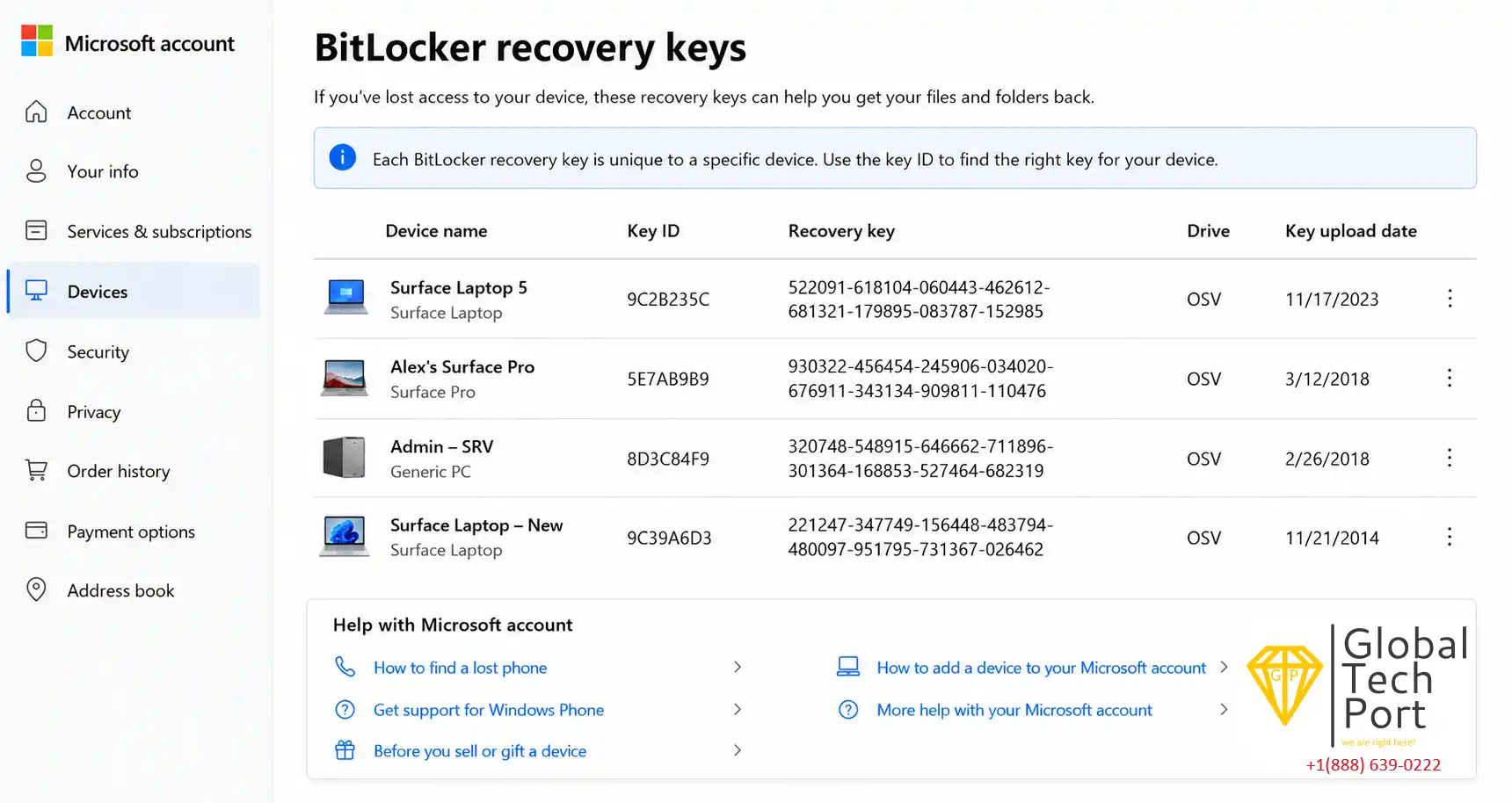
- Compare the Recovery Key ID shown on your locked computer with the Key ID listed with each recovery key.
- Once you find the matching ID, use the corresponding 48-digit BitLocker Recovery Key on the BitLocker screen.
Important: The Recovery Key ID is used to identify the correct recovery key. You do not enter the Recovery Key ID itself into the BitLocker recovery screen. You enter the associated 48-digit recovery key.
Method 2: Check Your Work or School Account
If the computer was provided by your employer, school, university, or another organization, the BitLocker Recovery Key may be stored with the organization’s Microsoft account or device-management system.
For work or school accounts, Microsoft provides a separate recovery-key location:
- Open the link from another device.
- Sign in with the work or school account associated with the computer.
- Look for the affected device and available BitLocker recovery information.
- Match the Recovery Key ID with the ID shown on the locked computer.
- Use the corresponding 48-digit recovery key to unlock the drive.
Depending on how the organization manages its devices, the recovery key may also be stored in Microsoft Entra ID, Microsoft Intune, Active Directory, or another company-managed system.
If you cannot access the organization’s recovery information, contact the company’s or school’s IT department and provide the Recovery Key ID shown on the BitLocker screen.
Need help? If this is a business or school computer and you’re unsure which account contains the recovery key, an IT administrator may need to retrieve it from the organization’s device-management system.
Method 3: Check a Printed BitLocker Recovery Key
When BitLocker was enabled, the recovery key may have been printed or saved as a physical record.
Check places where important computer documents are normally kept, including:
- Computer documentation
- Office filing cabinets
- Important personal records
- Safe or secure storage
- Warranty or setup paperwork
If someone else originally configured the computer, ask whether they printed or saved the BitLocker Recovery Key.
Method 4: Check a USB Flash Drive
Some users choose to save the BitLocker Recovery Key to a USB flash drive during setup.
If you remember using a USB drive while enabling BitLocker, connect the drive to another working computer and look for the saved recovery-key file.
Do not format, erase, or initialize the USB drive before checking its contents.
Method 5: Check Active Directory on a Business Computer
If the Windows computer belongs to a company domain, the organization’s IT administrator may have backed up the BitLocker Recovery Key to Active Directory Domain Services (AD DS).
This is common in managed business environments where administrators centrally manage BitLocker recovery information.
Contact your organization’s IT department and provide information such as:
- Recovery Key ID
- Computer name, if available
- Your employee username or email address
Method 6: Check Other Saved Copies
If you manually backed up your recovery key, it may also exist as a text file, printed document, secure password record, or another backup created when BitLocker was enabled.
Search your own files and backups for terms such as:
- BitLocker
- Recovery Key
- Recovery Password
- BitLocker Recovery
What Is the BitLocker Recovery Key ID?
The BitLocker Recovery Key ID is a unique identifier displayed on the BitLocker Recovery screen. It is not the same thing as the 48-digit BitLocker Recovery Key.
The ID is primarily used to identify which recovery key belongs to the locked computer.
If multiple recovery keys are stored in your Microsoft account, compare the Recovery Key ID shown on your locked computer with the Key IDs listed in your account.
Once you find the matching ID, use the associated 48-digit BitLocker Recovery Key to unlock the computer.
Remember:
- The Recovery Key ID identifies the correct key.
- The 48-digit Recovery Key unlocks the encrypted drive.
- Your Windows password or PIN is not a replacement for the recovery key.
BitLocker Recovery Screen Example
Enter the recovery key for this drive
Use the number keys or function keys F1–F10 (use F10 for 0).
Example Recovery Key ID
The Recovery Key ID shown here is an example. Your actual Recovery Key ID will be different.
What Is a BitLocker Recovery Key?
A BitLocker Recovery Key, sometimes called a “BitLocker code” by users, is a unique 48-digit numerical recovery key generated when BitLocker or compatible Windows device encryption is enabled.
Windows may request the recovery key when it detects a security-related change and cannot automatically unlock the encrypted drive using the device’s normal security configuration.
A BitLocker recovery key is different from:
- Your Windows password
- Your Windows PIN
- Your fingerprint
- Your Microsoft account password
- Your Recovery Key ID
A recovery key is normally displayed as eight groups of six digits, for example:
XXXXXX-XXXXXX-XXXXXX-XXXXXX-XXXXXX-XXXXXX-XXXXXX-XXXXXX
Do not publish or share your real 48-digit recovery key. Anyone who obtains the correct recovery key may be able to unlock the encrypted drive.
What If You Can’t Find the BitLocker Recovery Key?
If you cannot immediately locate the recovery key, do not assume it is permanently lost. Work through the following checks before considering a Windows reset or reinstall.
1. Check Every Microsoft Account You May Have Used
Many households have multiple Microsoft accounts. The BitLocker Recovery Key may be associated with a different account than the one you are currently checking.
Try every Microsoft account that may have been used when the computer was originally configured.
2. Ask Whoever Originally Set Up the Computer
If someone else configured the PC, the recovery key may have been saved under their account or in a backup they created.
This could include:
- A family member
- A computer technician
- An employer
- A school or university IT department
- The previous owner of a second-hand computer
3. Check Old USB Drives
Look through USB drives that were used when the computer was originally configured. Do not erase or reformat a USB drive before checking its contents.
4. Search Your Email and Cloud Storage
If you manually backed up the recovery key, you may have stored it in an email, cloud-storage folder, password manager, or another secure location.
Search for:
- BitLocker
- Recovery Key
- Recovery Password
- Microsoft Recovery
5. Check Printed Documents
Look through computer manuals, warranty paperwork, important records, and any documents created when BitLocker was enabled.
6. Check With Your Organization’s IT Department
If this is a work or school computer, do not assume the key should be in your personal Microsoft account. The organization may have stored the recovery information in Microsoft Entra ID, Active Directory, Intune, or another managed system.
Important:
If you have checked every legitimate recovery location and still cannot locate the BitLocker Recovery Key, the encrypted data generally cannot be unlocked without the correct recovery key. BitLocker is specifically designed to prevent unauthorized access to encrypted data.
Can You Bypass the BitLocker Recovery Screen?
No supported bypass exists for a BitLocker-encrypted drive when the required recovery key is unavailable.
BitLocker is designed to protect the contents of an encrypted drive even if someone has physical access to the computer.
There is no legitimate Microsoft method that generates a replacement recovery key or decrypts the existing encrypted data without an available recovery method.
Be cautious of websites, videos, or software claiming they can instantly “crack,” “remove,” or “bypass” BitLocker without the recovery key. Such claims may be misleading, ineffective, or potentially harmful.
Common Mistakes to Avoid
❌ Reinstalling Windows Immediately
Do not immediately reinstall Windows simply because the BitLocker recovery screen appeared. First check every legitimate recovery location.
If important files remain on the encrypted drive, reinstalling Windows or deleting partitions can result in permanent data loss.
❌ Formatting the Drive
Formatting or deleting partitions can destroy access to existing data. Do not format the drive until you have decided that the existing data is no longer needed or cannot be recovered.
❌ Confusing Your Windows Password With the Recovery Key
Your Windows password, PIN, fingerprint, or Microsoft account password cannot substitute for the 48-digit BitLocker Recovery Key.
❌ Repeatedly Resetting BIOS Settings
Repeated BIOS or UEFI changes may trigger additional BitLocker security checks instead of solving the underlying problem.
❌ Downloading Untrusted Recovery Software
Be extremely cautious with software that claims to remove BitLocker encryption or recover a missing key. There is no supported Microsoft utility that can simply generate a replacement BitLocker recovery key for an encrypted drive.
Why Did BitLocker Suddenly Activate?
One of the most common questions users ask is:
“I never enabled BitLocker, so why is my computer suddenly asking for a recovery key?”
In many cases, BitLocker or Windows Device Encryption was already enabled. You may never have noticed because the computer normally unlocked automatically using the TPM and the device’s normal security configuration.
When Windows detects a significant security-related change, automatic unlocking may be interrupted and Windows can request the 48-digit recovery key.
This can happen after:
- Installing a BIOS or UEFI firmware update
- Updating Windows security components
- Changing Secure Boot settings
- Replacing the motherboard or TPM
- Moving the SSD to another computer
- Resetting BIOS settings to factory defaults
- Changing boot order or storage configuration
- Other hardware or security configuration changes
Although the recovery screen can look alarming, this behavior is intended to protect encrypted data from unauthorized access.
Why Does BitLocker Keep Asking for the Recovery Key?
If Windows repeatedly asks for the BitLocker Recovery Key every time the computer starts, the system may still be detecting a security or configuration change.
Common causes include:
- BIOS or UEFI configuration changes
- TPM configuration changes
- Secure Boot changes
- Motherboard replacement
- Storage-device changes
- Firmware updates
- Other boot or security configuration changes
If you can successfully unlock Windows but the recovery prompt returns after every restart, check for pending firmware or Windows updates and review recent BIOS, TPM, and Secure Boot changes.
After successfully unlocking the computer, BitLocker protection may also need to be temporarily suspended before certain firmware or hardware changes are performed.
How to Prevent BitLocker Recovery Prompts in the Future
After you successfully regain access to your computer, take a few minutes to make sure your recovery key is safely backed up.
- Back up your BitLocker Recovery Key to your Microsoft account when appropriate.
- Keep a printed copy in a secure location.
- Store an additional backup in a secure location that you can access if the PC becomes unavailable.
- Avoid unnecessary BIOS or Secure Boot changes.
- Suspend BitLocker protection before supported BIOS or firmware maintenance when appropriate.
- Keep Windows and device firmware updated.
What Is BitLocker?
BitLocker is Microsoft’s built-in drive-encryption technology designed to protect data stored on Windows devices.
Instead of simply protecting your Windows login, drive encryption protects the contents of the encrypted drive. Without an appropriate unlock method or recovery key, the encrypted data remains inaccessible.
BitLocker is commonly associated with:
- Windows 11 Pro
- Windows 10 Pro
- Windows Enterprise
- Windows Education editions
Many newer Windows devices also use Device Encryption, which provides similar drive-encryption protection and can store recovery information with a Microsoft account.
Frequently Asked Questions
How do I find my BitLocker Recovery Key?
For a personal PC, start by checking your Microsoft account’s BitLocker recovery keys. For a work or school computer, check the organization’s recovery system or work or school recovery-key page. You can also check a printed copy, USB drive, saved file, or business IT system. Match the Recovery Key ID on your computer with the correct 48-digit recovery key.
Where can I find my BitLocker Recovery Key?
Your recovery key may be stored in your personal Microsoft account, work or school account, Microsoft Entra ID, Active Directory, a USB flash drive, a printed copy, or another backup location selected when BitLocker was configured.
Can Microsoft provide my BitLocker Recovery Key if I lost it?
Microsoft cannot generate or recreate a lost BitLocker Recovery Key. If the key was backed up to your Microsoft account, you may be able to retrieve it after signing in with the correct account.
Can I bypass BitLocker without the recovery key?
No. There is no supported method to bypass BitLocker encryption and access the existing encrypted data without the required recovery key or another valid recovery method.
Will reinstalling Windows remove BitLocker?
Reinstalling Windows does not decrypt existing encrypted data. If important files remain on the encrypted drive, resetting or reinstalling Windows may result in permanent data loss.
Does every Windows computer use BitLocker?
No. BitLocker is commonly available on Windows Pro, Enterprise, and Education editions. Many modern Windows Home devices can use Device Encryption, which provides similar drive-encryption protection.
Can I disable BitLocker after recovering my computer?
Yes. After successfully unlocking the computer, BitLocker protection can be suspended or disabled depending on your Windows edition and configuration. Before disabling encryption, make sure you understand the security implications and have securely backed up your recovery information.
Why is my BitLocker Recovery Key not in my Microsoft account?
Possible reasons include:
- You are checking a different Microsoft account.
- Someone else originally configured the computer.
- The computer belongs to an employer or school.
- The key was saved to a USB drive.
- The key was printed or saved manually.
- The recovery information is stored in an organization-managed system.
Is there a default BitLocker Recovery Key?
No. There is no universal or default BitLocker Recovery Key. Each encrypted device has its own recovery key.
Is my Windows password the same as my BitLocker Recovery Key?
No. Your Windows password, PIN, fingerprint, or Microsoft account password is different from the BitLocker Recovery Key. The recovery key is a unique 48-digit code used to unlock the encrypted drive when Windows requires recovery.
I Don’t Have a BitLocker Recovery Key for Windows 11. What Can I Do?
Start by checking your Microsoft account from another device. If the computer was ever associated with work or school, check with the organization’s IT department. Also check USB backups, printed records, saved files, and other Microsoft accounts that may have been used when the computer was configured.
If the recovery key cannot be found in any legitimate recovery location, the encrypted data generally cannot be unlocked without the correct recovery key.
Can GlobalTechPort recover my BitLocker Recovery Key?
GlobalTechPort cannot generate or bypass BitLocker encryption. However, our technicians can help identify where your recovery key may have been stored, verify Microsoft account information, review business recovery options, and guide you through legitimate recovery steps.
Final Thoughts
Seeing the BitLocker Recovery screen does not necessarily mean your computer is damaged or that your files are gone. In many cases, Windows is simply protecting encrypted data after detecting a security-related change.
If Windows is asking for a BitLocker Recovery Key, start with the Microsoft account associated with the computer and use the Recovery Key ID to identify the correct 48-digit key.
Before making major changes such as reinstalling Windows, formatting the drive, or deleting partitions, check every possible recovery location:
- Microsoft account
- Work or school account
- Microsoft Entra ID or Active Directory
- USB backups
- Printed records
- Saved files or other backups
If you still cannot locate the recovery key, avoid unofficial tools or services claiming that they can bypass BitLocker encryption. Verify every legitimate recovery option before making changes that could permanently affect your data.
Need Professional BitLocker Recovery Assistance?
If you’re locked out of your Windows computer and need help locating your BitLocker Recovery Key, GlobalTechPort provides remote technical support for home users and businesses throughout the USA and Canada.
- ✔ Help locating your BitLocker Recovery Key
- ✔ Microsoft Account verification assistance
- ✔ Windows 10 & Windows 11 troubleshooting
- ✔ Business recovery-option guidance
- ✔ Secure remote technical support
- ✔ Data recovery guidance
📞 Call: (888) 639-0222
📧 Email: support@globaltechport.com
Important: We cannot bypass BitLocker encryption or generate a missing recovery key. Our role is to help you locate legitimate recovery options and determine the safest next step.
Related Articles
📍 Visit our Google Business Profile:
GlobalTechPort on Google Maps