

Why Is My Laptop So Slow? 15 Ways to Fix It Fast (2026 Guide)

Last Verified & Updated: June 08, 2026
Computer Repair Specialist at GlobalTechPort with over 15 years of experience diagnosing and fixing slow laptops, PC performance issues, malware infections, and hardware upgrades.
Is your laptop taking forever to start, freezing randomly, running hot, or opening apps very slowly?
Are you wondering “why is my laptop so slow”,
“why is my laptop running slow”,
“why is my laptop slow and laggy”,
or “how to speed up a slow laptop”?
A slow laptop can be frustrating, especially when simple tasks like browsing the internet, opening documents, or launching programs take much longer than they should.
Performance problems can happen on both Windows 10 and Windows 11 laptops and affect all major brands including Dell, HP, Lenovo, ASUS, Acer, Samsung, Toshiba, and Microsoft Surface devices.
The most common causes of laptop slowdowns include too many startup programs, insufficient RAM, malware infections, overheating, low storage space, outdated drivers, excessive browser tabs, and older hard drives that should be upgraded to SSDs.
In this guide, you’ll learn the most common reasons laptops become slow and discover 15 practical ways to speed up your laptop, improve performance, and make Windows feel responsive again.
Signs Your Laptop Is Running Slow
- Programs take too long to open
- Laptop freezes or lags frequently
- Slow startup or shutdown time
- Browser tabs load slowly
- High CPU or disk usage
- Fan constantly running loudly
- Windows becomes unresponsive
Why Is My Windows 10 or Windows 11 Laptop Suddenly Running Slow?
Sudden laptop slowdowns are commonly caused by Windows updates, background applications,
malware infections, overheating, insufficient storage space, or a failing hard drive or SSD.
In many cases, startup programs, browser tabs, and cloud syncing services consume system resources,
making the laptop feel sluggish and unresponsive.
If your laptop was previously running normally and has recently become slow,
check for recent software installations, Windows updates, high CPU or memory usage,
malware infections, and storage space issues. Identifying the cause can help restore performance more quickly.
Quick Laptop Speed Checklist
- Restart your laptop
- Disable startup apps
- Free up C: drive space
- Run a malware scan
- Install Windows updates
- Check Task Manager resource usage
- Upgrade to SSD if still using HDD
- Upgrade RAM if memory usage is high
15 Ways to Speed Up a Slow Laptop
These fixes work for both Windows 10 and Windows 11 laptops,
including Dell, HP, Lenovo, ASUS, Acer, Samsung, and other major brands.
Most performance problems are caused by software, startup apps,
storage limitations, or outdated hardware.
1. Restart Your Laptop ▼
Restarting clears temporary memory usage and stuck background processes.
Many slow laptops instantly improve after a proper reboot.
2. Disable Startup Programs ▼
Too many startup apps slow boot time and consume RAM immediately after login.
- Press Ctrl + Shift + Esc
- Open Task Manager
- Go to the Startup tab
- Right click and Disable apps you don’t need
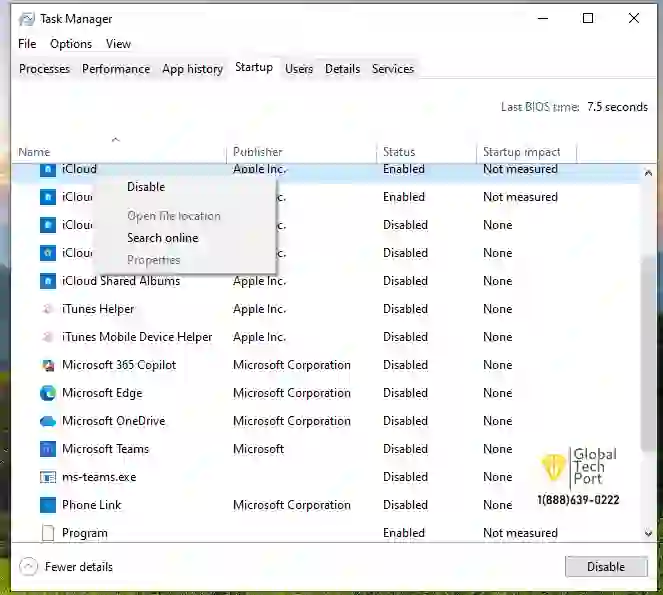
Disable unnecessary startup programs to improve laptop startup time and overall Windows 10 performance.
3. Check CPU, RAM, and Disk Usage ▼
Task Manager shows which apps are consuming the most system resources.
- Open Task Manager
- Click Processes
- Sort by CPU, Memory, or Disk usage
- Close unnecessary heavy applications
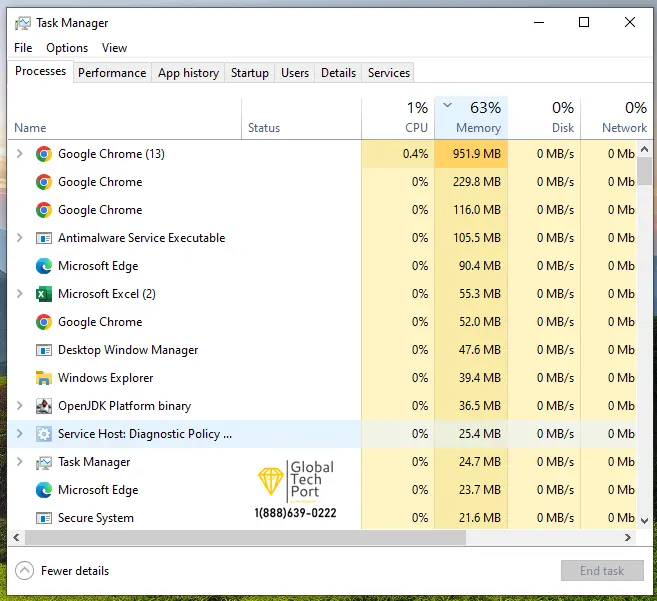
Use Task Manager to identify programs consuming excessive CPU, memory, or disk resources that may slow down your laptop.
4. Free Up Disk Space ▼
When your C: drive becomes nearly full, Windows performance drops significantly.
- Delete unused downloads
- Empty recycle bin
- Remove unused software
- Move large files to cloud or external storage
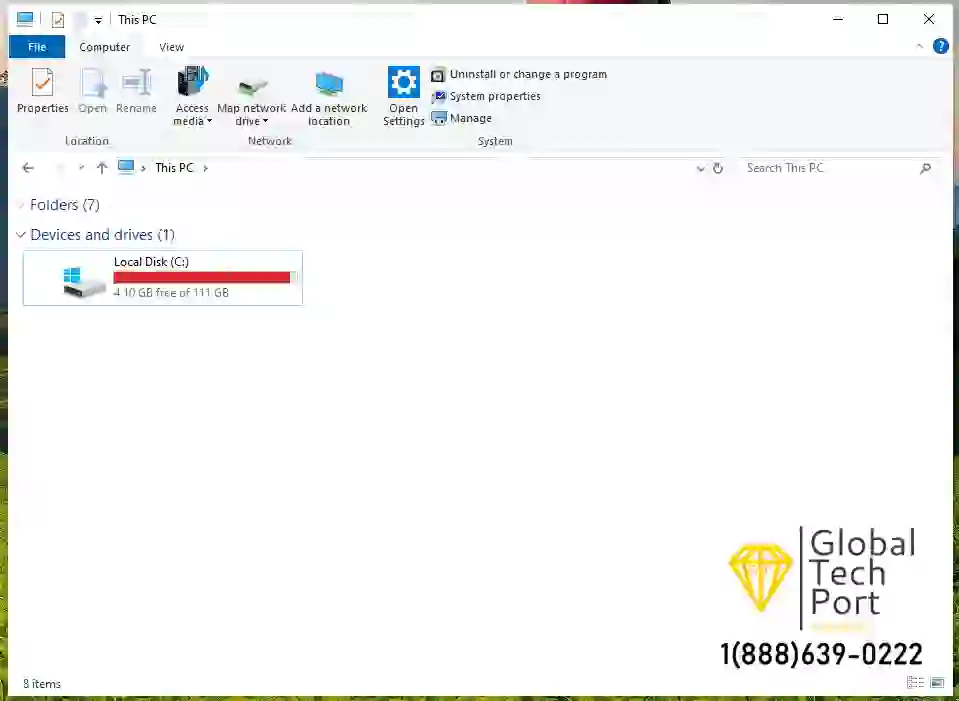
Low storage space on the C: drive can cause slow performance, application lag, and Windows update issues.
5. Run Disk Cleanup ▼
- Search for Disk Cleanup
- Select your main drive
- Delete temporary files and Windows cache
- Run Clean up system files

Disk Cleanup removes temporary files, cache, and unnecessary data that can slow down Windows performance.
6. Scan for Malware and Viruses ▼
Malware often runs silently in the background and causes major slowdowns.
- Open Windows Security
- Select Virus & Threat Protection
- Run a Full Scan

A malware scan can detect viruses, spyware, and unwanted programs that may be slowing down your laptop.
7. Update Windows and Drivers ▼
Outdated drivers and failed Windows updates commonly cause freezing and lagging.
- Install Windows updates
- Update graphics drivers
- Update chipset and Wi-Fi drivers
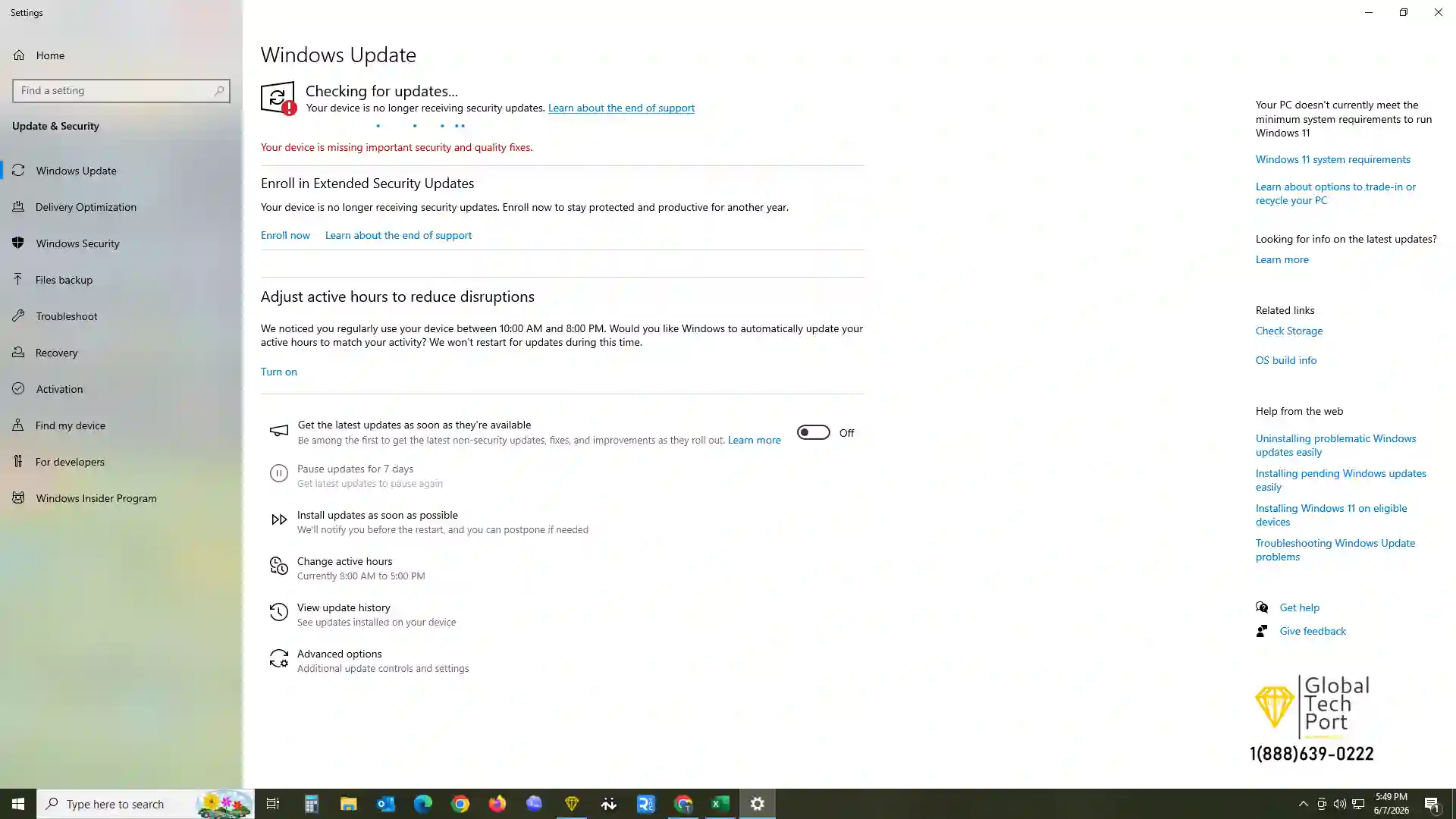
Keeping Windows and device drivers updated can fix bugs, improve security, and enhance laptop performance.
8. Reduce Browser Tabs and Extensions ▼
Modern browsers like Google Chrome and Microsoft Edge consume large amounts of RAM,
especially when multiple tabs and extensions are active.
Too many browser processes can slow down both your browser and your entire laptop.
Common signs browser usage is slowing your laptop:
- Slow page loading
- Browser freezing or crashing
- High memory usage in Task Manager
- Laptop fan running loudly while browsing
- Lag while switching tabs
To reduce browser resource usage:
- Close unused browser tabs and windows
- Open Chrome or Edge and type:
chrome://extensions or edge://extensions - Disable or remove extensions you no longer use
- Clear browser cache and temporary files
- Restart the browser after closing heavy tabs
- Avoid running multiple streaming or video tabs simultaneously
- Use Task Manager to identify browser memory usage:
- Press Ctrl + Shift + Esc
- Check RAM usage under Chrome or Edge processes
Reducing browser memory usage can significantly improve laptop speed,
especially on systems with 4GB or 8GB RAM.
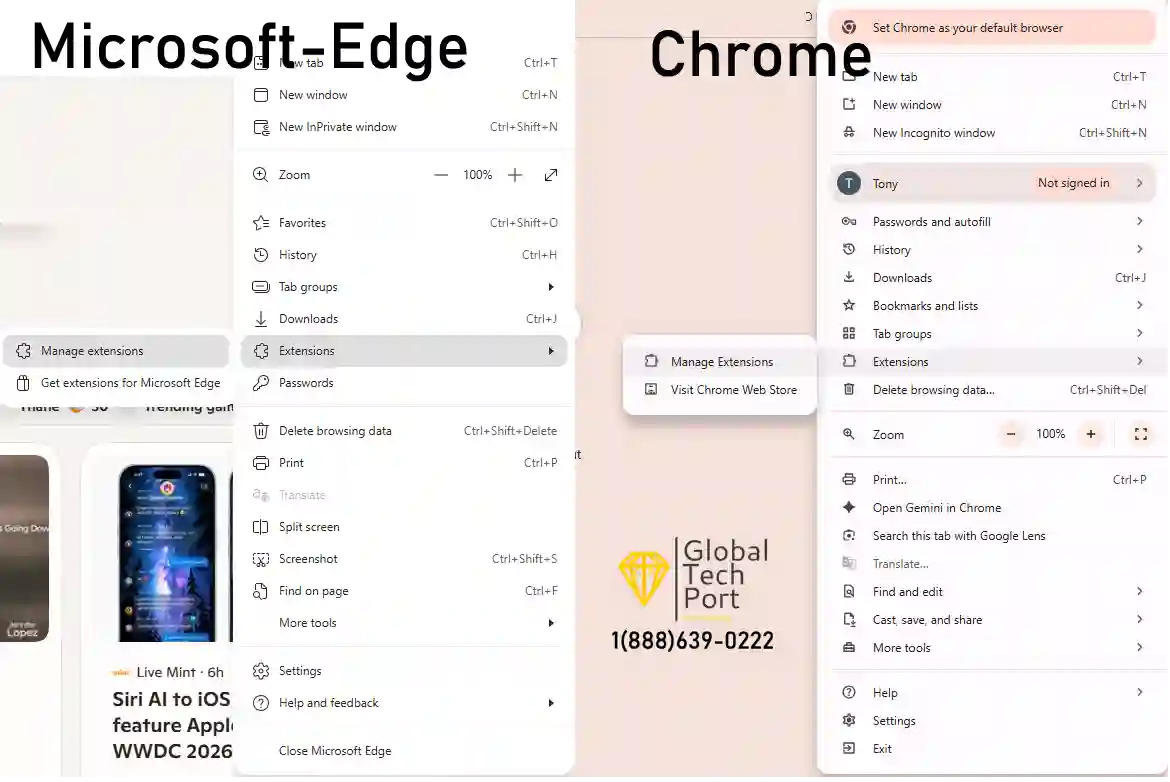
Too many open browser tabs and extensions can use significant RAM and CPU resources, slowing down your laptop.
9. Pause OneDrive or Cloud Syncing ▼
Cloud syncing services like OneDrive, Google Drive, and Dropbox can heavily use CPU,
disk, and internet resources while uploading or syncing files in the background.
Large sync operations may cause your laptop to feel slow or unresponsive.
Common signs cloud syncing is slowing your laptop:
- High disk usage in Task Manager
- Slow internet while working or browsing
- Laptop fan running constantly
- Files continuously syncing in the background
- Lag during video calls or multitasking
To pause OneDrive or cloud syncing:
- Click the OneDrive cloud icon near the Windows clock
- Select the Settings or Gear icon
- Choose Pause Syncing
- Select a pause duration such as:
- 2 Hours
- 8 Hours
- 24 Hours
- Close unnecessary cloud storage apps running in the background
- Resume syncing later when your laptop is idle
Pausing background syncing can noticeably improve laptop speed,
especially during gaming, video meetings, or heavy multitasking.
10. Disable Visual Effects ▼
Windows animations and transparency effects reduce performance on older laptops.
- Search Advanced System Settings
- Open Performance Settings
- Select Adjust for Best Performance

Disabling unnecessary visual effects can reduce resource usage and make an older laptop feel more responsive.
11. Check Laptop Temperature ▼
Overheating is a common reason laptops become slow over time. When the CPU reaches high temperatures, Windows automatically reduces processor speed to protect the hardware. This process, known as thermal throttling, can cause lag, slow application performance, and reduced responsiveness.
You can monitor your laptop’s temperature using Open Hardware Monitor, a free utility that displays real-time CPU, GPU, and system temperatures.
Download Open Hardware Monitor:
https://openhardwaremonitor.org/
As a general guideline, these CPU temperature ranges are considered normal for most laptops:
- 35°C–50°C (95°F–122°F): Normal when idle or performing light tasks such as web browsing.
- 50°C–70°C (122°F–158°F): Common during everyday use, video streaming, and office work.
- 70°C–85°C (158°F–185°F): Expected during gaming, video editing, or other demanding tasks.
- 85°C–95°C (185°F–203°F): High temperature range. Performance may begin to decrease due to thermal throttling.
- Above 95°C (203°F): Excessive heat that can cause significant slowdowns, system instability, or unexpected shutdowns.
If your CPU frequently exceeds 90°C under normal workloads, investigate cooling issues such as blocked air vents, dust buildup, failing fans, or dried thermal paste.
Signs your laptop may be overheating include:
- Cooling fans running loudly for extended periods
- Laptop feeling hot near the keyboard or air vents
- Slow performance during gaming or multitasking
- Random freezing, lagging, or stuttering
- Unexpected shutdowns or restarts
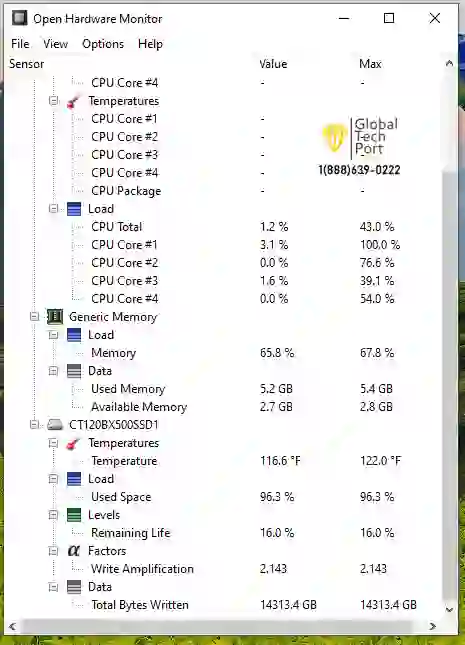
High temperatures can cause thermal throttling, reducing your laptop’s speed and overall performance.
For most users, ensuring proper airflow and keeping vents unobstructed can help reduce temperatures. If temperatures remain consistently high, additional maintenance may be required.
Advanced Fix (Professional Service Recommended):
If your laptop continues to overheat, dust buildup inside the cooling system may be restricting airflow. Cleaning internal cooling fans, heatsinks, and replacing dried thermal paste can significantly improve cooling performance. Because this requires opening the laptop and handling sensitive components, professional service is recommended unless you are comfortable working with laptop hardware.
12. Increase Virtual Memory (Pagefile) ▼
Low-RAM laptops often perform better with properly configured virtual memory.
Windows uses part of your storage drive as temporary memory when physical RAM becomes full.
- Press Windows + S and search for Advanced System Settings
- Open View Advanced System Settings
- Under the Performance section, click Settings
- Go to the Advanced tab
- Under Virtual Memory, click Change
- Uncheck Automatically manage paging file size for all drives
- Select your main drive (usually C:)
- Choose Custom Size
- Set:
- Initial Size: 1.5× your installed RAM
- Maximum Size: 3× your installed RAM
- Click Set → OK → Restart your laptop
This can improve performance on laptops with 4GB or 8GB RAM,
especially during multitasking or when many browser tabs are open.
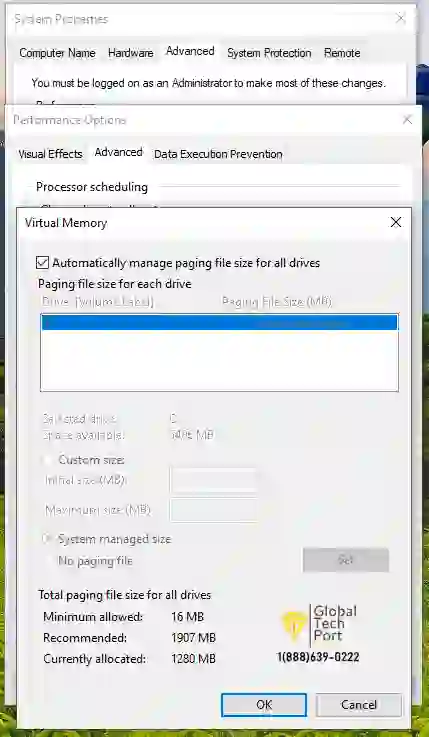
Increasing virtual memory can help improve performance when your laptop runs low on available RAM.
13. Remove Unused Apps and Bloatware ▼
Many laptops come with preinstalled apps and trial software that continue running in the background even when you don’t use them. Removing unnecessary programs can improve startup speed, reduce RAM usage, and free up storage space.
- Open Settings → Apps
- Click Installed Apps or Apps & Features
- Sort programs by Size or Install Date
- Remove apps you no longer use
- Uninstall trial antivirus software, game launchers, and unnecessary manufacturer utilities
- Restart your laptop after uninstalling large programs
Removing bloatware is especially helpful on older laptops with limited RAM or storage space.

Removing unused software and bloatware can free up storage space and improve overall laptop performance.
14. Upgrade from HDD to SSD ▼
If your laptop still uses a traditional HDD, upgrading to an SSD provides the biggest speed improvement.
Boot times and app loading speeds become dramatically faster.
How to check: Open Device Manager → Disk Drives.
If it doesn’t mention SSD, upgrading storage is highly recommended.
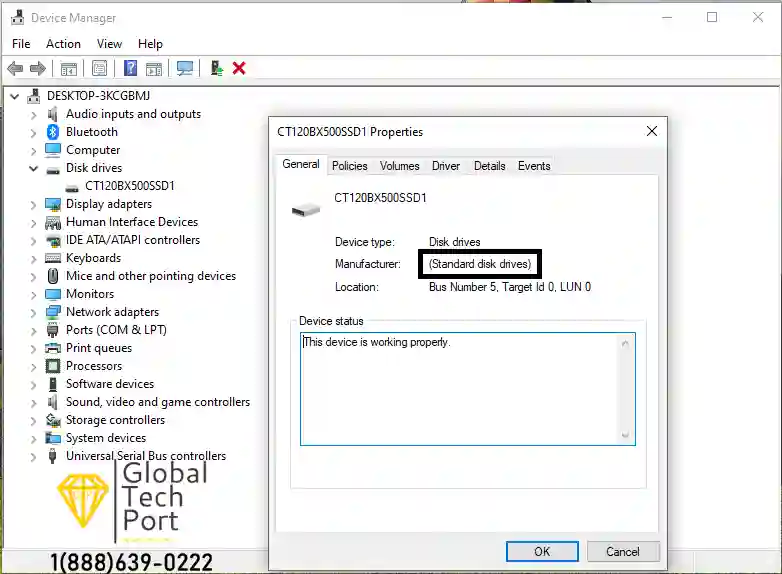
Checking your storage drive can help determine whether upgrading from an HDD to an SSD will improve laptop performance.
15. Add More RAM ▼
If your memory usage stays above 80%, upgrading RAM significantly improves multitasking and responsiveness.
Laptop RAM Performance Guide
| RAM | Performance | Best For |
|---|---|---|
| 4GB | Very Slow | Basic email and browsing only |
| 8GB | Standard | Office work and light multitasking |
| 16GB | Optimal | Heavy browsing, meetings, multitasking |
| 32GB+ | Power User | Editing, virtual machines, development |
Can Remote Support Fix a Slow Laptop?
Yes. Many slow laptop problems can be fixed remotely without visiting a repair shop.
Remote support is effective for malware removal, startup optimization, Windows troubleshooting,
driver issues, browser problems, OneDrive syncing issues, and general performance tuning.
If your laptop continues freezing, overheating, or running slowly after trying the fixes above,
the issue may be caused by malware infections, Windows corruption, startup problems,
misconfigured settings, or other performance-related issues that can often be diagnosed and repaired remotely.
However, if the problem involves failing hardware such as a defective SSD, hard drive, RAM, cooling fan, or motherboard,
onsite service or hardware replacement may be required.
If your laptop still runs slowly after trying the fixes above,
a technician can remotely diagnose the issue and recommend additional repairs or hardware upgrades.
Frequently Asked Questions
Why is my laptop so slow and laggy? ▼
low storage space, or insufficient RAM.
How do I fix a slow laptop? ▼
scan for malware, update Windows and drivers,
and upgrade to SSD or more RAM if needed.
Does upgrading to SSD make a laptop faster? ▼
for older laptops.
How do I know if my laptop needs more RAM? ▼
your laptop will benefit from additional RAM.
Can malware make a laptop slow? ▼
memory, and storage resources continuously.
How can I speed up my laptop? ▼
To speed up your laptop,
disable startup apps,
free up storage space,
remove unused programs,
scan for malware,
and reduce background browser tabs.
Upgrading to SSD storage and adding more RAM can also dramatically improve performance.
Can a slow laptop be fixed remotely? ▼
Why is my laptop suddenly running slow? ▼
A laptop that suddenly becomes slow is often affected by Windows updates, malware, cloud syncing, overheating, failing storage drives, or programs running in the background. Checking Task Manager for high CPU, RAM, or Disk usage is a good first step.
Why is my new laptop so slow? ▼
New laptops may run slowly during the first few days because Windows is downloading updates, indexing files, syncing OneDrive, or running manufacturer software in the background. Performance usually improves after setup is complete.
Why is my laptop so slow on startup? ▼
Slow startup is commonly caused by too many startup programs, antivirus software loading at boot, Windows updates, or older hard drives. Disabling unnecessary startup apps and upgrading to an SSD can significantly improve boot times.
What is the fastest way to speed up a laptop? ▼
The fastest ways to speed up a laptop are disabling startup programs, removing unnecessary apps, freeing storage space, scanning for malware, and upgrading from an HDD to an SSD. If your laptop has limited memory, adding more RAM can also improve performance significantly.
- Having HP printer cartridge issues? Read:
How to Fix HP Non-HP Chip Detected Error
- Not sure whether to buy Microsoft 365 or Office 2024? Compare features and costs:
Microsoft 365 vs Office 2024: Which One Should You Choose?
- Seeing fake virus warnings, FBI alerts, or McAfee/Norton pop-ups on your computer? Follow our removal guide:
Fake Virus Pop-Ups Removal Guide (2026)
Professional Laptop Support
GlobalTechPort provides remote laptop repair, malware removal,
Windows troubleshooting, and performance optimization services across the USA and Canada.
We also offer onsite laptop and computer repair services in Dallas TX and nearby DFW areas.