

How to Enable TPM 2.0 for Windows 11
Last Verified & Updated: May 16, 2026
If you’re trying to upgrade to Windows 11 and see the error
“This PC can’t run Windows 11”, the most common reason is that
TPM 2.0 is disabled in BIOS/UEFI. To install Windows 11, you must enable TPM 2.0 first. In this guide, you’ll learn how to check TPM status and enable TPM 2.0 in BIOS safely for Windows 11 on both Intel and AMD computers.
TPM 2.0 (Trusted Platform Module) is a mandatory security requirement for Windows 11. Without enabling it, installation cannot continue.
This guide shows how to enable TPM 2.0 for Windows 11 in BIOS step-by-step.
Table of Contents
- How to Check TPM Status
- How to Enable TPM 2.0 in BIOS
- Enable TPM on Intel Systems
- Enable TPM on AMD Systems
- FAQ
How to Check TPM Status in Windows
What is TPM 2.0 (And Why Windows 11 Needs It)
TPM stands for Trusted Platform Module. It is a security feature used to protect encryption keys,
secure boot processes, and device authentication.
Windows 11 requires TPM 2.0 to improve security and protect your system from malware attacks.
Step 1: Check TPM Status in Windows
Method A: Check TPM using Run command
- Press Windows + R
- Type tpm.msc and press Enter
- You will see one of these:
- TPM is ready for use ✅
- Compatible TPM cannot be found ❌
- Check the version:
- Look for Specification Version
- It should show 2.0
Method B: Check TPM in Device Manager
- Right click Start → Device Manager
- Expand Security Devices
- You may see:
- Trusted Platform Module 2.0
Step 2: Enter BIOS/UEFI Settings
To enable TPM 2.0, you must enter BIOS/UEFI. Restart your PC and press the BIOS key repeatedly:
- HP: Esc or F10
- Dell: F2
- Lenovo: F1 or F2
- ASUS: F2 or Del
- Acer: F2 or Del
- MSI: Del
Step 3: Enable TPM 2.0 in BIOS (Intel & AMD)
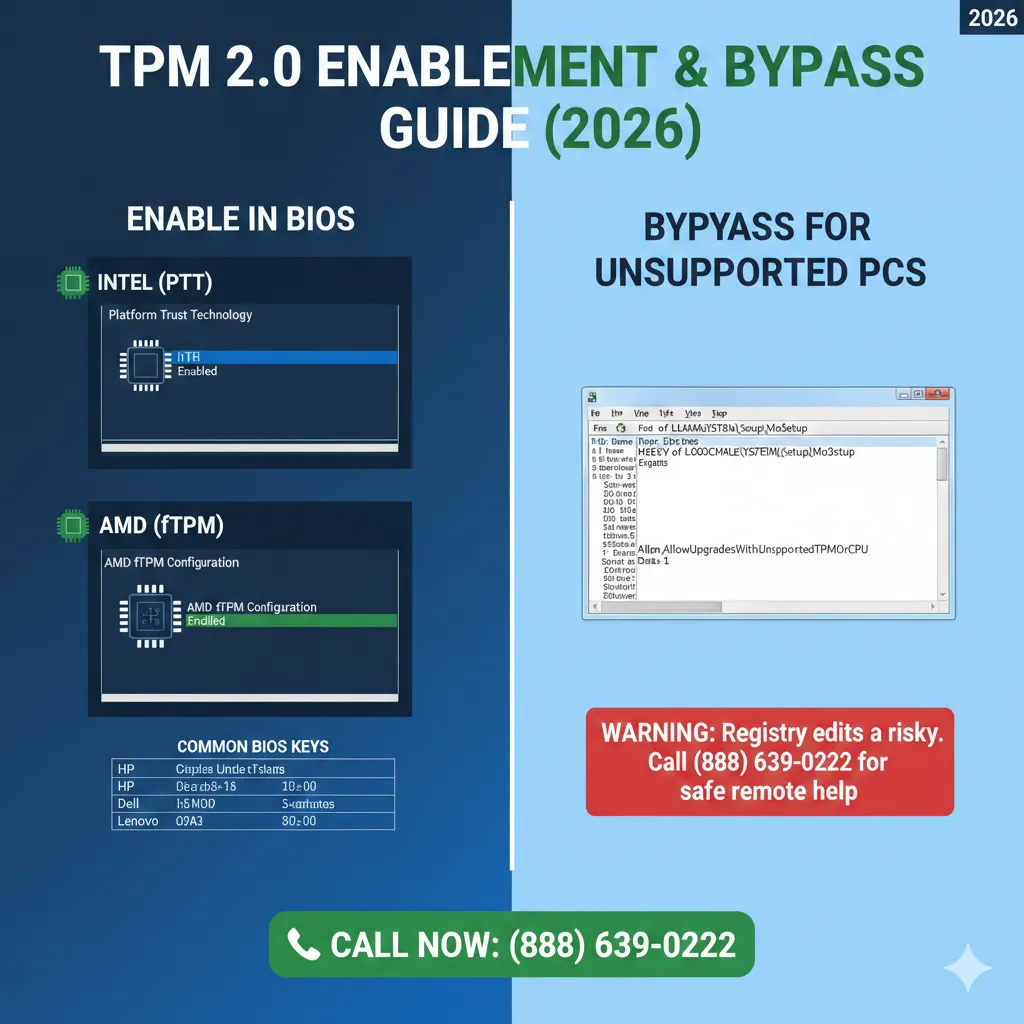
If you have Intel CPU: Enable Intel PTT
On Intel systems, TPM may appear as Intel Platform Trust Technology (PTT).
- In BIOS go to Security / Advanced
- Find PTT or Intel Platform Trust Technology
- Set it to Enabled
If you have AMD CPU: Enable fTPM
On AMD systems, TPM may appear as AMD fTPM.
- In BIOS go to Advanced or Security
- Find fTPM / AMD CPU fTPM
- Set it to Enabled
Common TPM setting names in BIOS
- TPM Device
- TPM Support
- Trusted Computing
- Security Chip
- PTT (Intel)
- fTPM (AMD)
Step 4: Save BIOS Settings & Restart
- Press F10 to Save & Exit (most PCs)
- Choose Yes to confirm
- Let the PC boot normally into Windows
- Check again using tpm.msc
If You Still See “This PC Can’t Run Windows 11”
- Enable Secure Boot (Windows 11 requirement)
- Update BIOS/UEFI firmware if TPM option is missing
- Check if your CPU is supported for Windows 11
- Make sure TPM shows Specification Version: 2.0
How to Bypass TPM 2.0 (For Unsupported PCs)
If your PC is older and truly lacks TPM 2.0 hardware, you can still install or upgrade to Windows 11 by bypassing the TPM check. This is a common solution in 2026 for perfectly functional “unsupported” hardware.
The Registry Editor Method
- Press Win + R, type regedit, and hit Enter.
- Navigate to:
HKEY_LOCAL_MACHINE\SYSTEM\Setup\MoSetup - Right-click in the right pane, select New > DWORD (32-bit) Value.
- Name it
AllowUpgradesWithUnsupportedTPMOrCPU. - Double-click it and set the Value data to 1.
Call: (888) 639-0222
Benefits of Enabling TPM 2.0
Enabling TPM 2.0 improves system security, enables BitLocker encryption, protects login credentials, and ensures compatibility with Windows 11 updates.
FAQ (Frequently Asked Questions)
How do I know if my PC has TPM 2.0?
Press Windows + R, type tpm.msc, and press Enter. Check the Specification Version. If it shows 2.0, your PC supports TPM 2.0 and is ready for Windows 11.
How do I enable TPM 2.0 in BIOS for Windows 11?
Restart your PC and enter BIOS/UEFI settings. On Intel computers, enable Intel Platform Trust Technology (PTT). On AMD computers, enable AMD fTPM. Save changes and restart your PC, then verify TPM status using tpm.msc.
Why does my PC say “This PC can’t run Windows 11” even though it meets requirements?
This usually happens when TPM 2.0 or Secure Boot is disabled in BIOS. Enabling TPM 2.0 and Secure Boot will fix this error and allow Windows 11 installation.
What is TPM called in BIOS?
TPM may appear under different names such as TPM Device, Security Chip, Trusted Computing, Intel PTT (Intel systems), or AMD fTPM (AMD systems).
Is enabling TPM 2.0 safe?
Yes. TPM is a built-in hardware security feature used for encryption and system protection. Enabling TPM 2.0 is safe and required for Windows 11.
Why can’t I find TPM settings in BIOS?
TPM settings may be hidden or disabled by default. Updating your BIOS can reveal the option. Older computers may not support TPM 2.0.
After you enable TPM 2.0 for Windows 11, your system will meet Microsoft security requirements and install updates properly.
Need Help Enabling TPM 2.0?
GlobalTechPort provides remote technical support for BIOS TPM settings, Secure Boot enablement,
Windows 11 upgrade errors, and update failures.