

Microsoft 365 Activation Problems — 10 Fixes That Work Fast
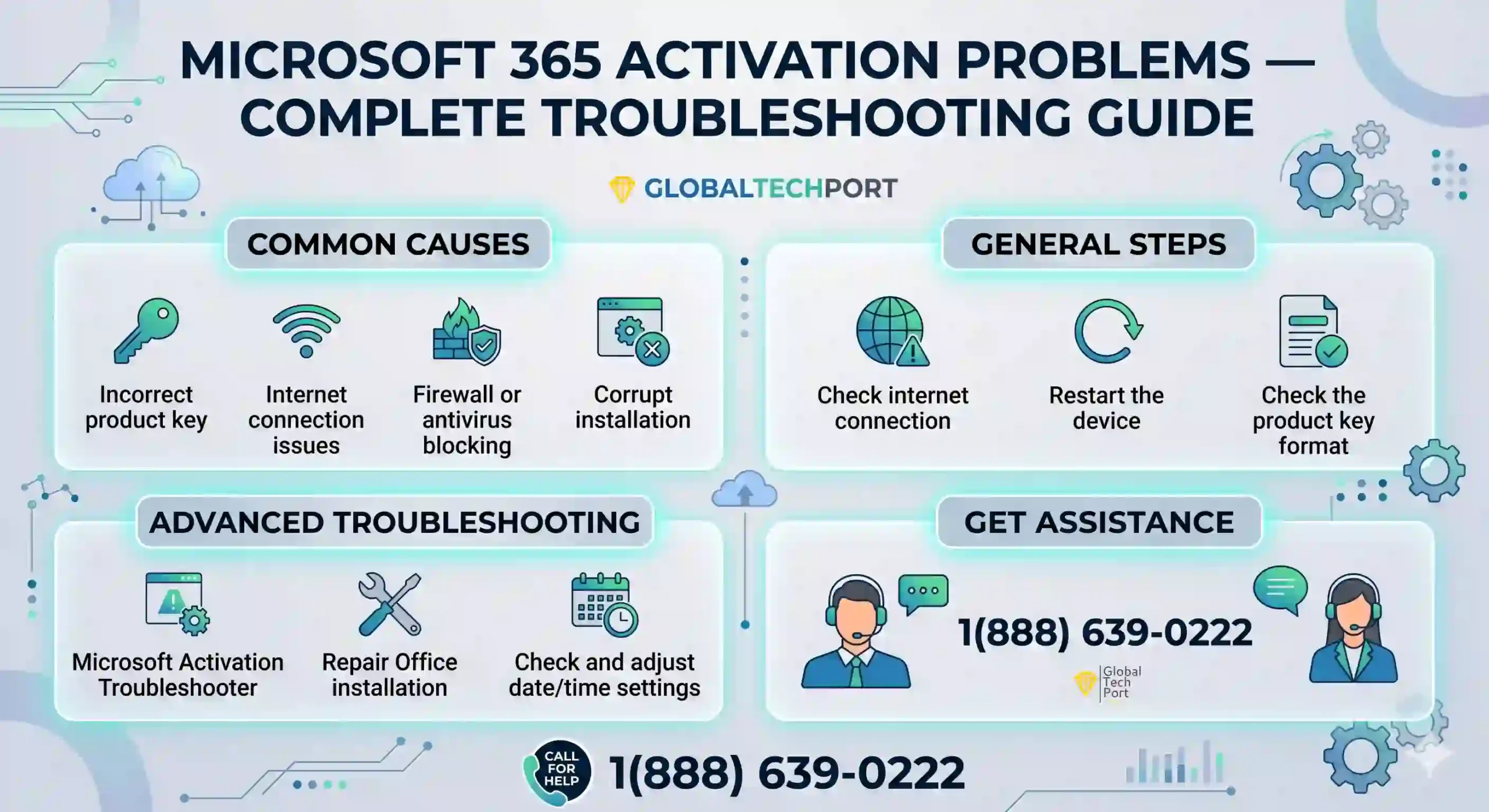
Microsoft 365 activation errors can prevent Word, Excel, Outlook, and other Office apps from working properly. Common problems include activation failed messages, subscription errors, sign-in issues, and “unlicensed product” warnings.
This guide explains the most common Microsoft 365 activation problems and how to fix them on Windows 10 and Windows 11 computers.
Common Microsoft 365 Activation Errors
- Microsoft 365 Activation Failed
- Unlicensed Product warning
- We couldn’t verify your subscription
- Account notice / subscription expired
- Error Code 0xC004F074
- Error Code 0x80070005
- Office apps asking to activate repeatedly
- Cannot sign into Microsoft account
- Office activation stuck on loading screen
Why Microsoft 365 Activation Fails
Most activation problems are caused by expired subscriptions, incorrect Microsoft accounts, internet connectivity issues, corrupted Office files, or leftover activation data from older Office versions.
Activation issues may also happen after:
- Changing computers
- Replacing hardware
- Reinstalling Windows
- Using multiple Microsoft accounts
- Installing Office incorrectly
- Upgrading from Office 2019 or Office 2021
Quick Microsoft 365 Activation Checklist
- Restart your computer
- Verify internet connection
- Confirm Microsoft 365 subscription is active
- Check you are using the correct Microsoft account
- Update Windows and Office apps
- Remove older Office versions
- Run Microsoft Support and Recovery Assistant
10 Ways to Fix Microsoft 365 Activation Problems
1. Restart Your Computer
Temporary activation glitches and background Office services often resolve after a simple restart.
- Save your work
- Restart your computer completely
- Open Word or Excel again
- Check if activation errors disappear
2. Check Internet Connectivity
Microsoft 365 requires internet access to validate subscriptions and licensing.
- Open a browser and test internet access
- Disable VPN temporarily if connected
- Restart your modem/router if needed
- Try activating Office again
3. Check Computer Date, Time, and Time Zone
Incorrect system date, time, or time zone settings can prevent Microsoft 365 from verifying licenses and connecting to activation servers properly.
- Open Settings → Time & Language
- Click Date & Time
- Enable:
- Set time automatically
- Set time zone automatically
- Click Sync Now
- Restart Office applications and try activation again
Activation errors commonly occur after CMOS battery problems,
manual time changes, or incorrect regional settings.
4. Verify Your Microsoft 365 Subscription and Account
Microsoft 365 activation problems often happen because the subscription expired,
billing failed,
or the wrong Microsoft account is signed into Office apps.
To verify your subscription and account:
- Visit account.microsoft.com
- Sign in using your Microsoft account
- Open Services & Subscriptions
- Verify your Microsoft 365 subscription is active
- Open Word or Excel
- Go to File → Account
- Check the signed-in email address matches the subscription owner account
- If needed, sign out and sign back in using the correct Microsoft account
Using multiple Microsoft accounts on the same computer is one of the most common causes of Microsoft 365 activation errors.
5. Temporarily Disable Antivirus or Firewall
Some antivirus programs and firewall settings can block Microsoft 365 activation servers,
preventing Office apps from verifying your subscription correctly.
- Temporarily disable third-party antivirus software
- Turn off VPN connections if enabled
- Check Windows Firewall settings
- Open Word or Excel and attempt activation again
- Re-enable security software immediately after testing
Security software from Norton, McAfee, Avast, Bitdefender,
and other vendors may occasionally interfere with Microsoft 365 activation services.
6. Remove Cached Credentials
Old login tokens and stored Office credentials sometimes cause sign-in loops and activation failures.
- Open Control Panel
- Go to Credential Manager
- Remove old Microsoft Office credentials
- Restart the computer
- Sign back into Office apps
7. Run Microsoft Support and Recovery Assistant
Microsoft provides an automated tool that detects and repairs common Office activation problems.
- Download the Microsoft Support and Recovery Assistant tool
- Install and run the program
- Select Office Activation
- Follow the recommended repair steps
8. Remove Older Versions of Office
Older Office installations can conflict with Microsoft 365 activation services.
- Open Settings → Apps
- Search for older Office versions
- Uninstall Office 2016, Office 2019, or trial versions if unused
- Restart your computer
9. Repair Microsoft Office
Corrupted Office files can prevent proper activation.
- Open Settings → Apps
- Select Microsoft 365
- Click Modify
- Choose Quick Repair
- If needed, run Online Repair
10. Reinstall Microsoft 365
If activation problems continue, reinstalling Microsoft 365 often resolves corrupted licensing issues.
- Uninstall Microsoft 365 completely
- Restart your computer
- Visit office.com
- Sign into your Microsoft account
- Download and reinstall Microsoft 365
Microsoft 365 Activation Error Codes
| Error Code | Meaning | Possible Fix |
|---|---|---|
| 0xC004F074 | Activation server issue | Check internet and restart Office |
| 0x80070005 | Permission denied | Run Office as administrator |
| Unlicensed Product | Subscription problem | Verify account and subscription |
Frequently Asked Questions
Why is Microsoft 365 asking me to activate repeatedly?
expired subscriptions, corrupted Office files, or activation cache problems.
Can I use Microsoft 365 without activation?
limiting editing and saving capabilities.
How do I know which Microsoft account owns my subscription?
to see which account has the active Microsoft 365 license.
Does reinstalling Office fix activation problems?
sign-in conflicts, and licensing issues.
Need Help Fixing Microsoft 365 Activation Problems?
GlobalTechPort provides remote Microsoft 365 troubleshooting,
activation repair, Outlook setup, and Office support services for home users and businesses.
Remote Support for Office 365 – USA
Remote Support for Office 365 – Canada
Onsite Support for Office 365 – Dallas TX
🔑 Seeing a BitLocker Recovery Key screen instead?
If your Windows computer is asking for a BitLocker Recovery Key after a BIOS update or hardware change, follow our complete step-by-step recovery guide.